

How to Set Up a Phantom Wallet on Solana (Desktop & Mobile)
We believe in full transparency with our readers. Some of our content includes affiliate links, and we may earn a commission through these partnerships. However, this potential compensation never influences our analysis, opinions, or reviews. Our editorial content is created independently of our marketing partnerships, and our ratings are based solely on our established evaluation criteria. Read More



Phantom Wallet has emerged as the most popular Solana wallet since its launch in January 2021, thanks to its excellent UX and beginner-friendliness. It has since expanded to allow users to store coins on the Ethereum and Polygon networks, making it a one-stop solution for many crypto traders.
In this guide, we will walk you through how to set up a Phantom wallet. We’ll explore mobile and desktop installations and explain the different settings of this non-custodial wallet.
How to Set Up Phantom Wallet on Desktop
Phantom Wallet is easy to configure on a desktop and has the most features available. Complete the following steps to get started:
Step 1: Visit the Official Website
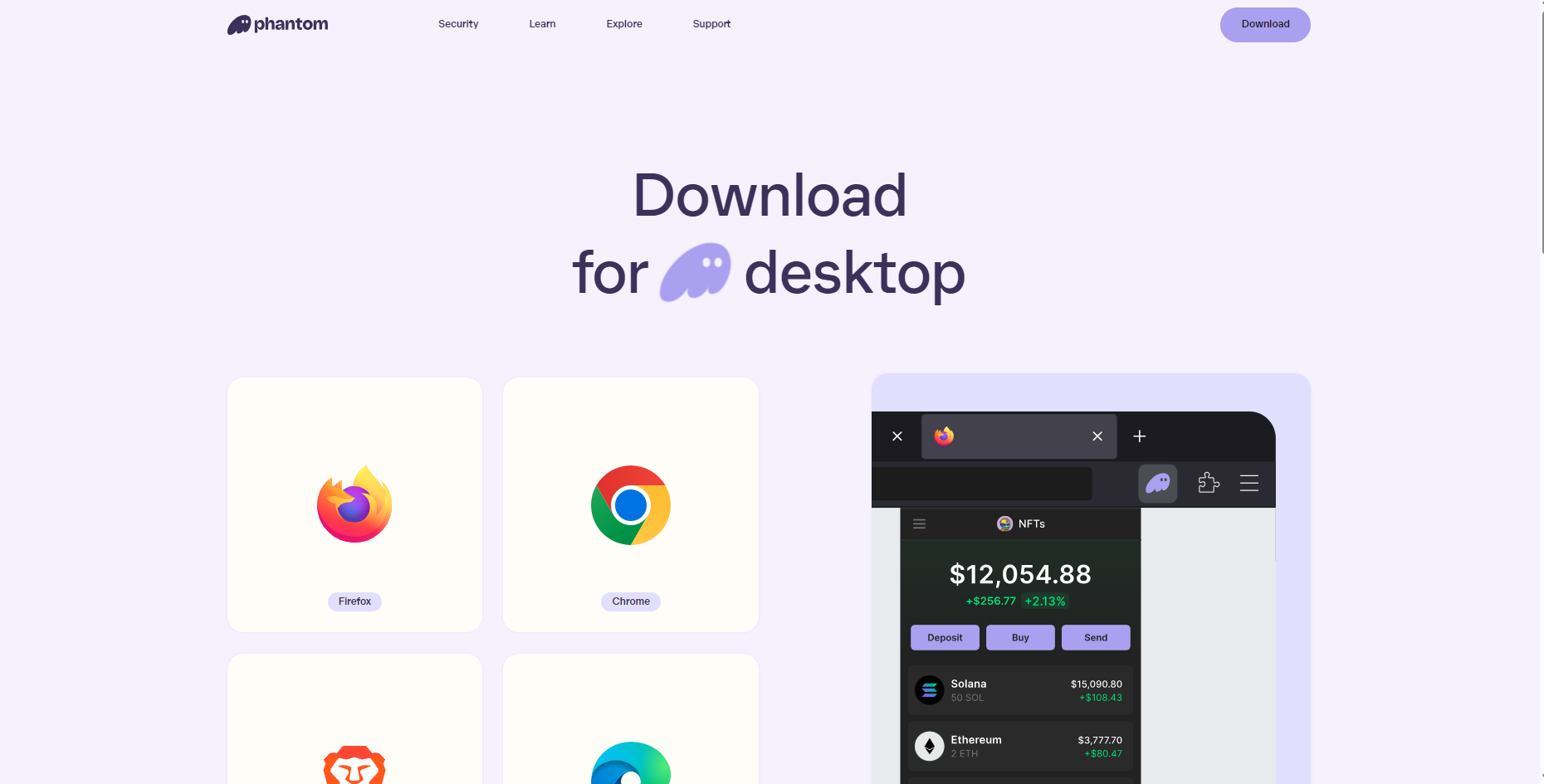
Firstly, head to the official Phantom website and make sure you are on the ‘Download’ screen.
Step 2: Choose a Browser
The next step is to select the appropriate browser you will be using to set up the Phantom Wallet. There are four options for doing this. Chrome, Firefox, Edge, and Brave. For this instance, let’s use Chrome.
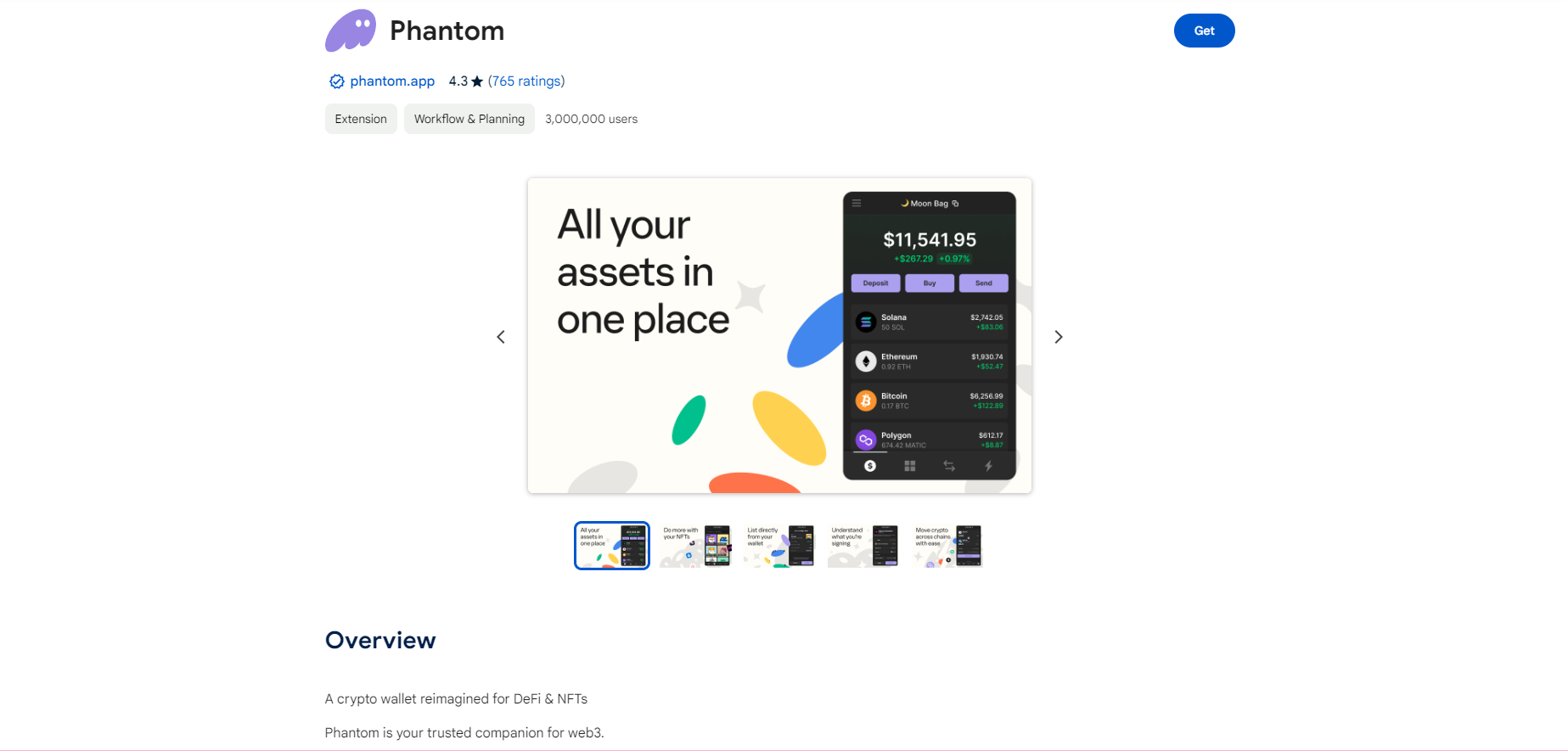
Once you’ve chosen your browser (Chrome), you will be taken to the download page on the web store, where there will be the option to “ Add to Chrome.” Click this, followed by “Allow” when you are asked to “Add extension.” This will then begin the download process.
Step 3: Create a New Wallet
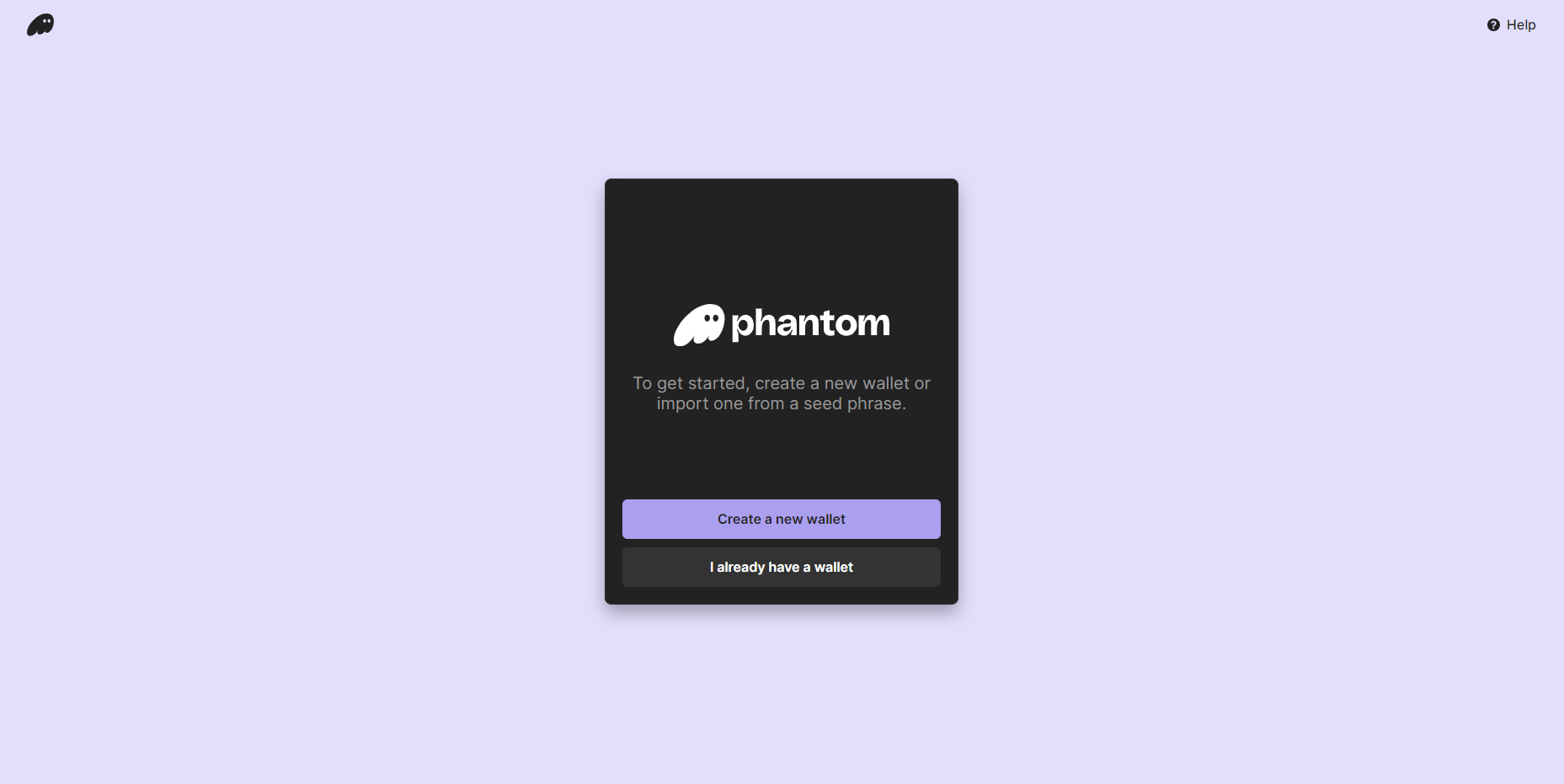
A new window will appear following the completion of the download, prompting you to “Create a new wallet.” Click this, and you will then be asked to enter a password. Ensure this is a secure and memorable code.
Step 4: Store Your Secret Recovery Phrase
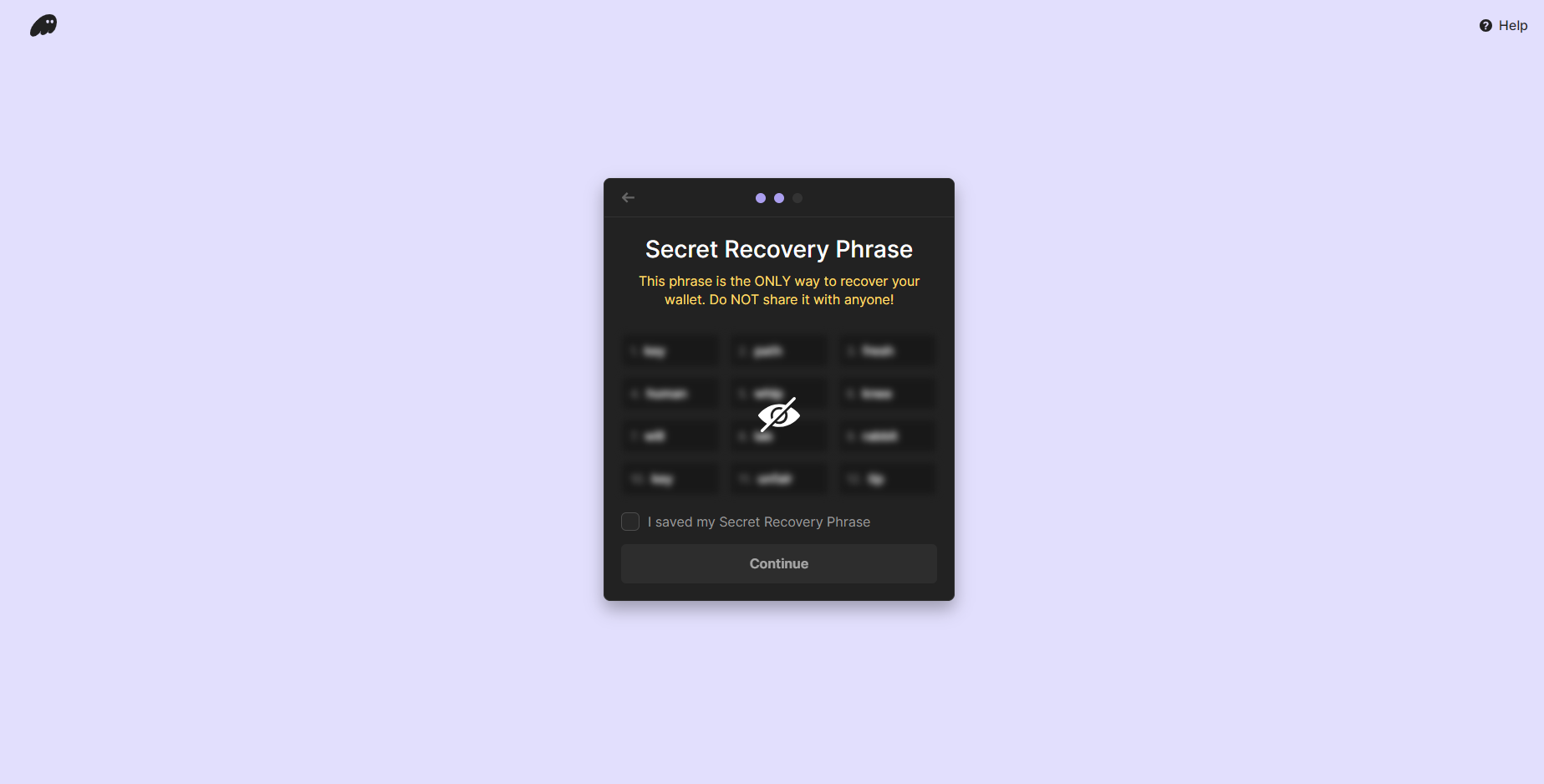
So you have a secure password; however, even more important than your password is this secret recovery phrase. This set of 12 words is used if you ever lose access to your wallet or password. They are a standard for non-custodial wallets. We recommend writing it down on a piece of paper and storing it somewhere safe. Never share this with anyone.
Step 5: Finish Installation
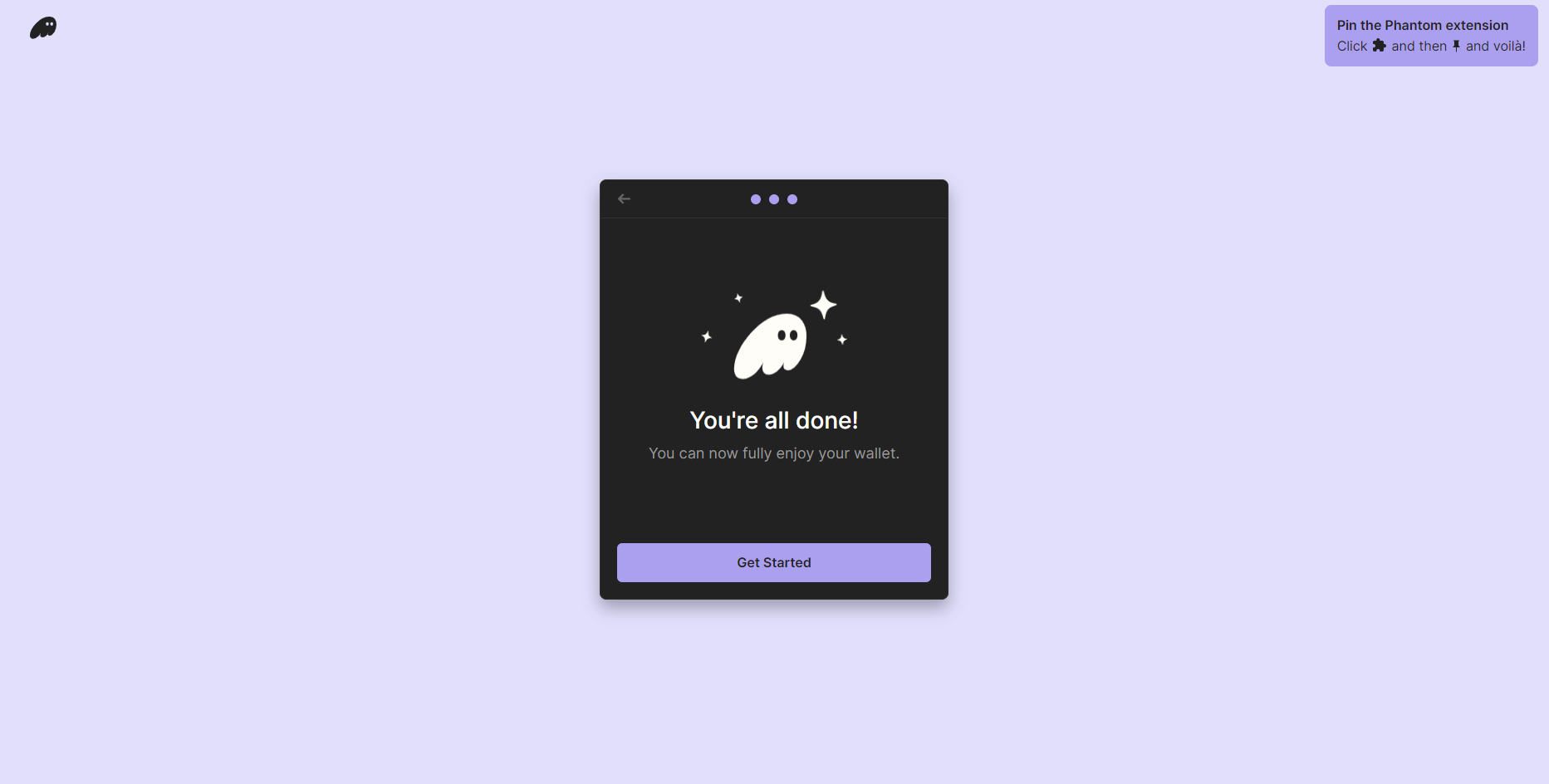
Finally, you’ve installed the Phantom Wallet. You will see an option to pin the extension on your browser. Once you enable this, it will appear on your browser toolbar, and you can then access it at any time by clicking on the icon.
Step 6: Deposit Funds
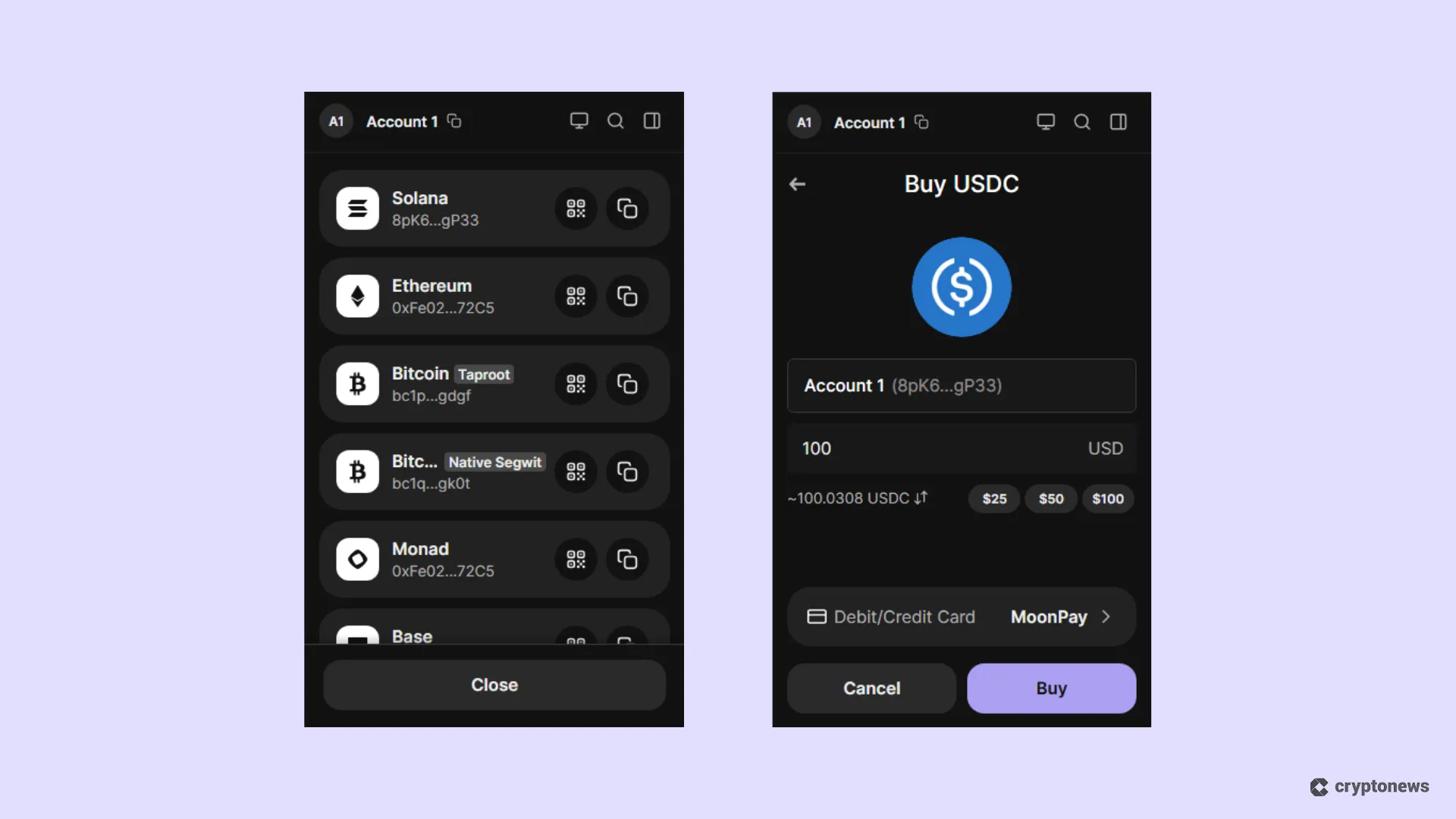
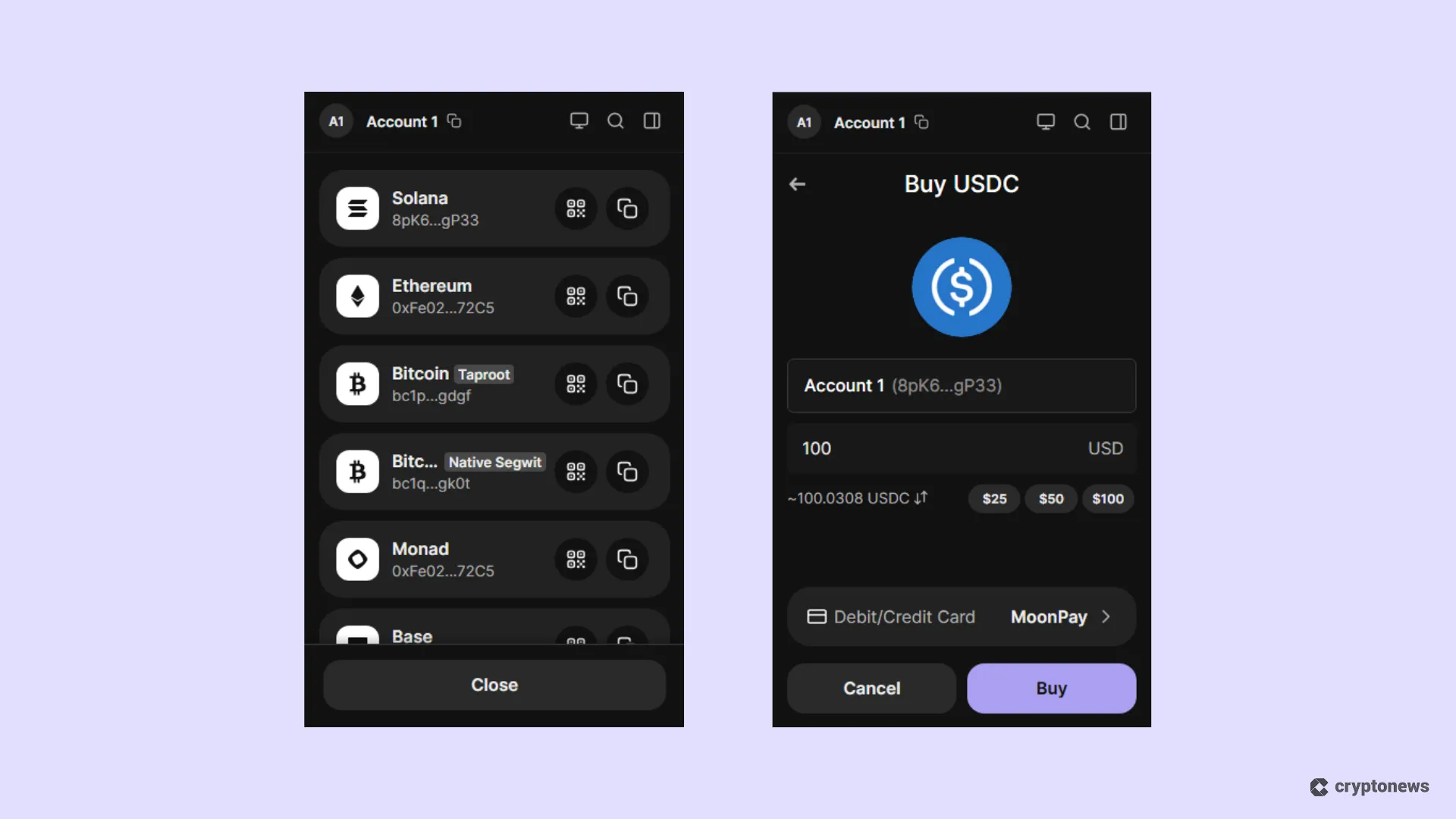
Phantom lets you fund your wallet via both crypto and fiat. To do so, click either the Receive or Buy buttons and follow the on-screen instructions. Phantom Wallet supports fiat deposits in multiple currencies via MoonPay, Apple/Google Pay, PayPal, and more. Crypto deposits, on the other hand, are available on the Solana, Ethereum, Bitcoin, and Polygon networks, among others.
How to Set Up Phantom Wallet on Mobile
For trading crypto on the go, the Phantom Wallet mobile app is a handy option. Let’s take a look at what you need to do to set this up on your mobile device.
Step 1: Visit the Official Website
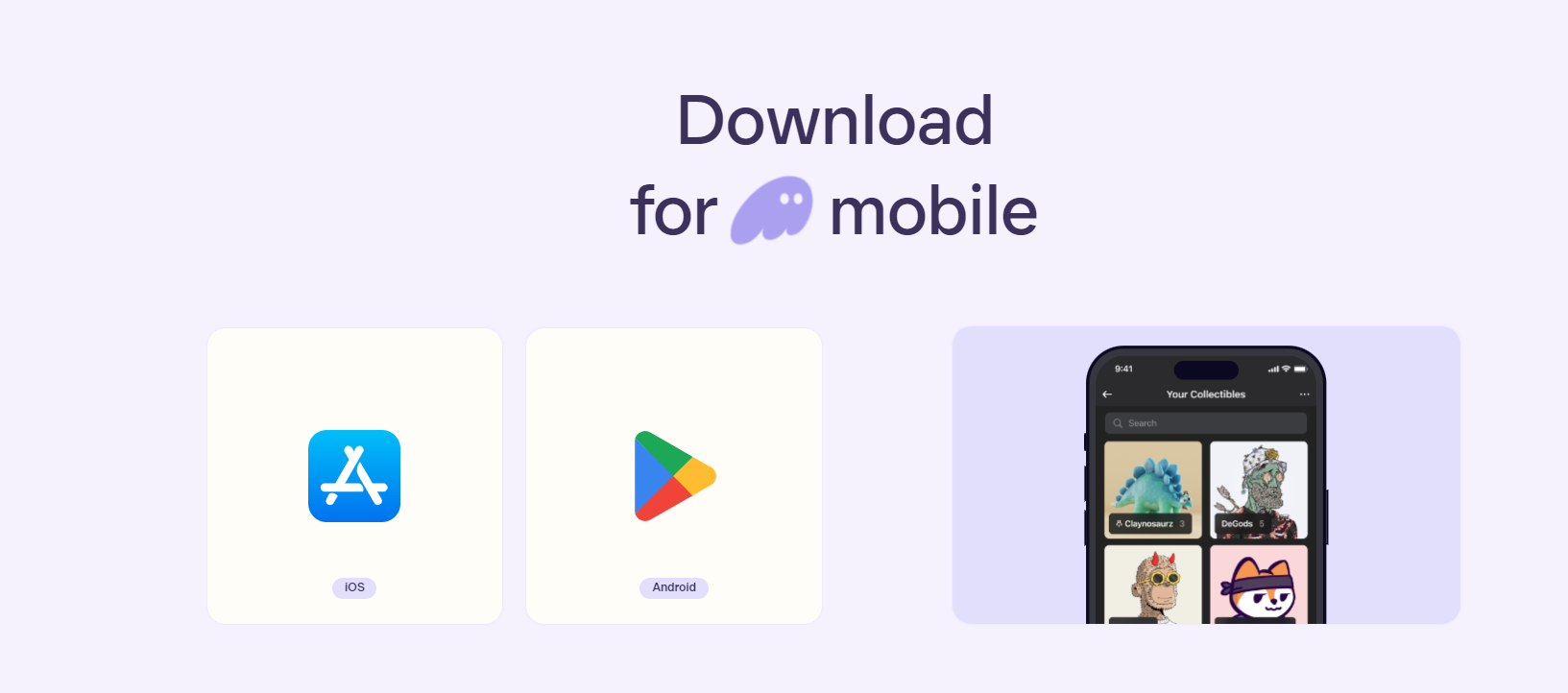
To download the mobile version, you can either go directly to the iOS or Google Play Store on your phone or do this on your desktop, where you will be presented with a QR code to complete the process on mobile.
Step 2: Go to the App Store
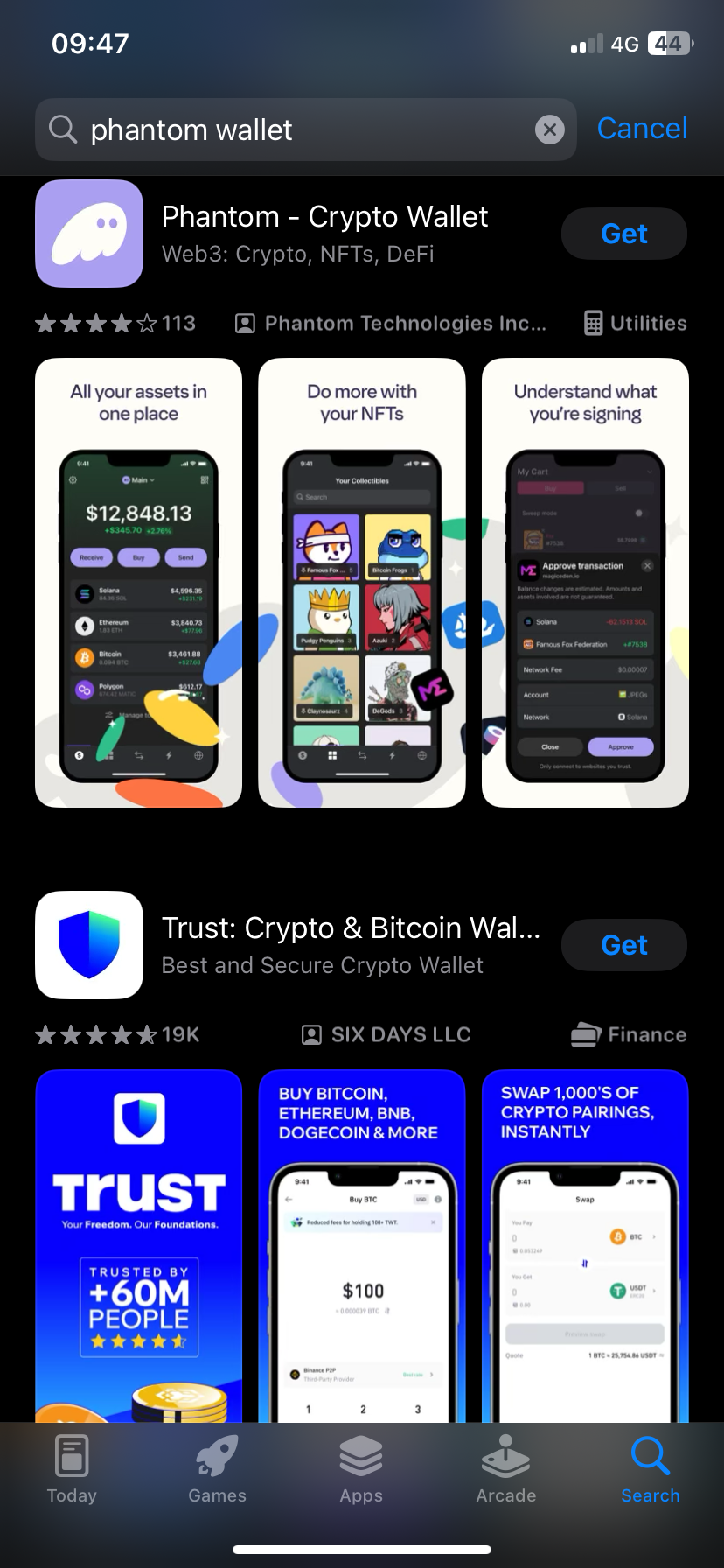
For simplicity, let’s start by downloading this from the App Store on our iOS mobile device. Simply search for “Phantom Wallet”. You will then receive the following result.
Step 3: Create a Wallet
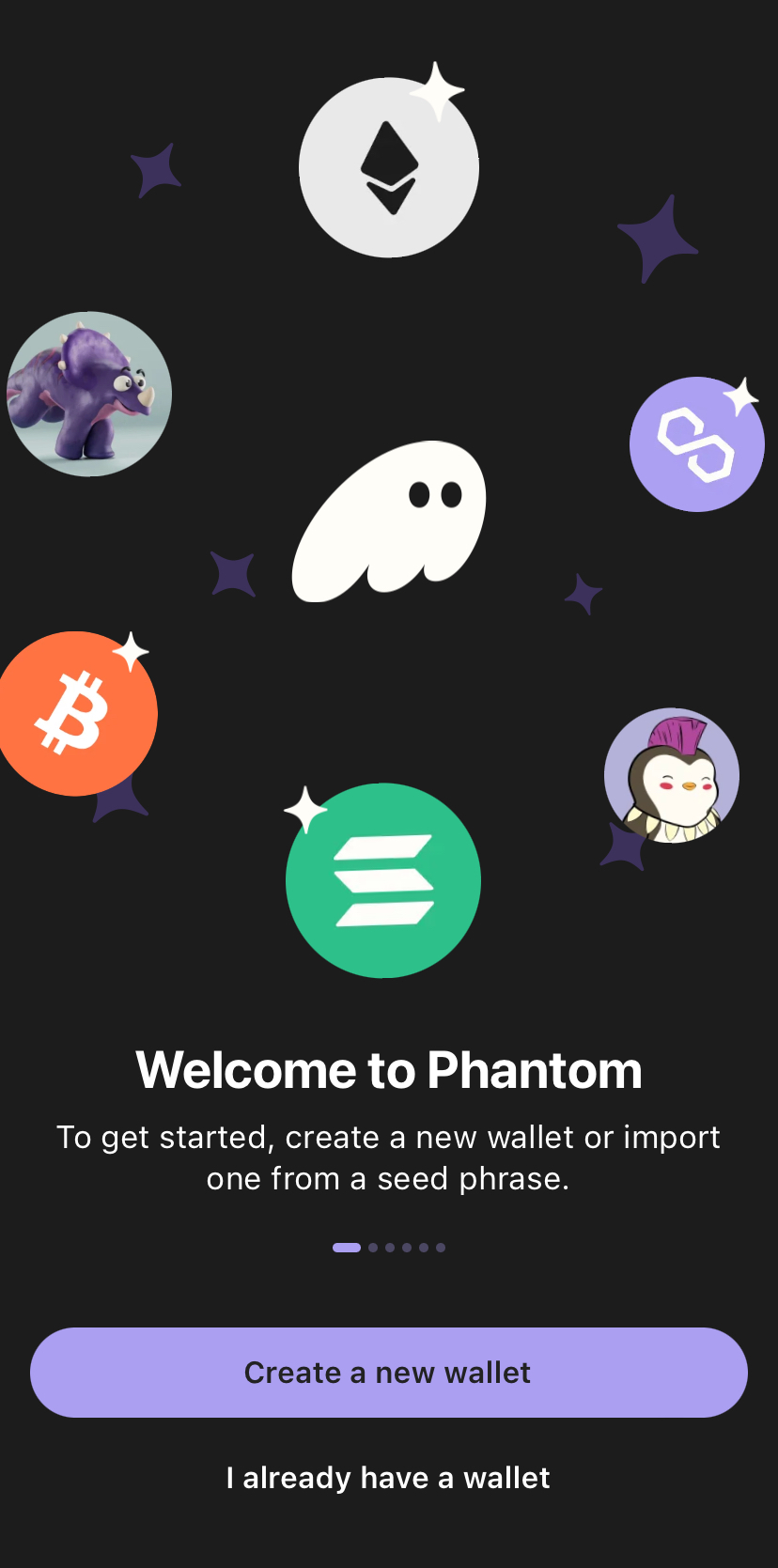
Once downloaded, open the app, and you’ll be presented with two options: “Create a new wallet” or “I already have a wallet.” Tap “Create a new wallet.” You’ll be guided through the setup process, including setting up your 12-word recovery phrase.
Step 4: Sign in to an Existing Wallet
If you already have a wallet, tap “I already have a wallet.” A toggle will appear to enable face ID, and then you will be asked to enter your secret recovery phrase.
Here, you will need to enter this numerical order. You do not need to enter the numbers in the order they appear. So if the first three phrases are “1. hello 2. tuesday 3. fish”, you simply enter “ hello tuesday fish.” Make sure only to capitalize the phrases if that’s how they were originally presented.
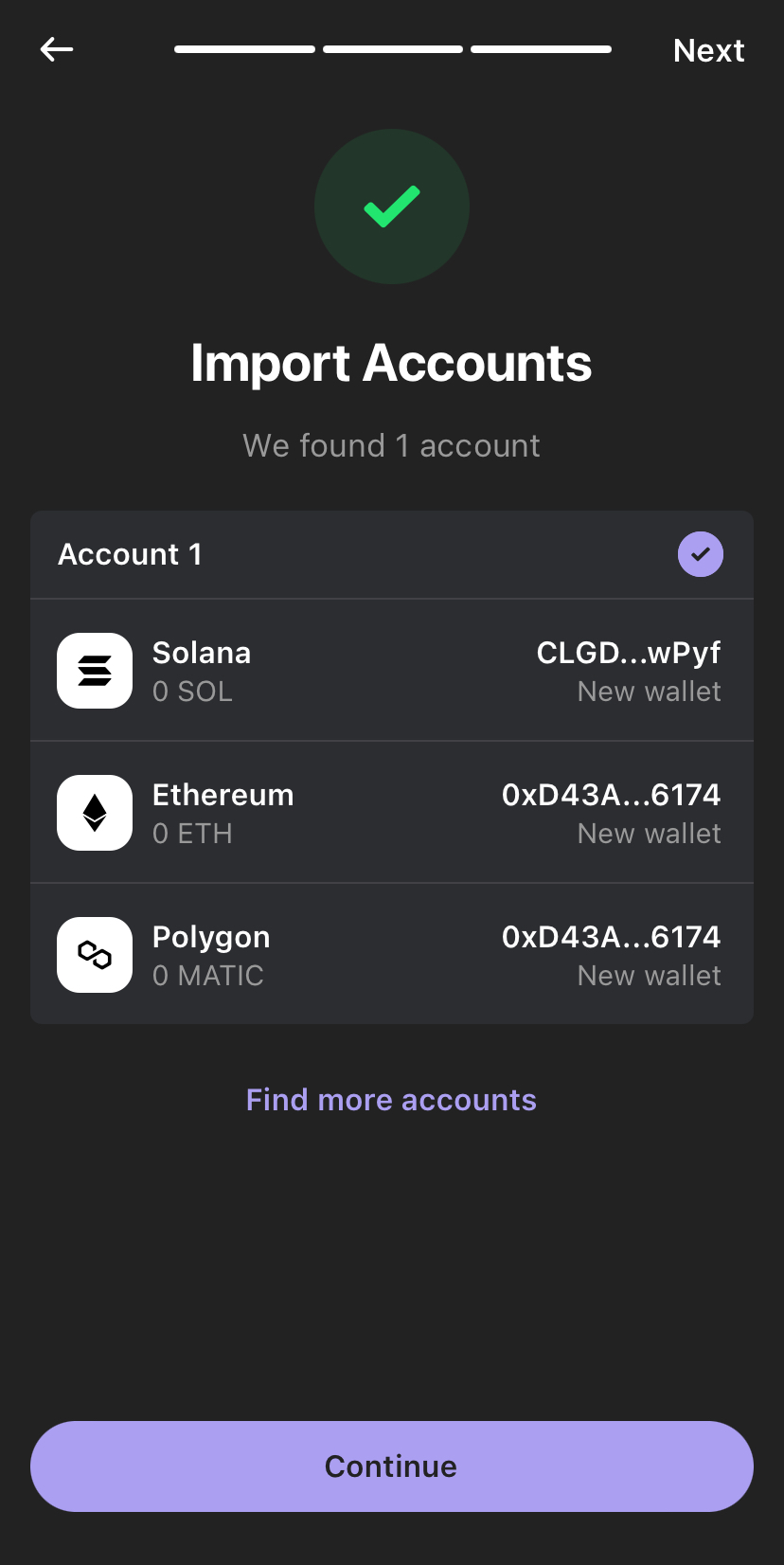
Step 5: Account Set-up Complete
If entered correctly, your account will appear. Select it, and it will import your account. Now, your mobile version of Phantom Wallet is ready for you to use.
Step 6: Add Funds
The process of adding or buying funds is the same as on the desktop version. You pick either Buy or Receive, and use fiat or crypto to fund your wallet.
Understanding The Different Settings
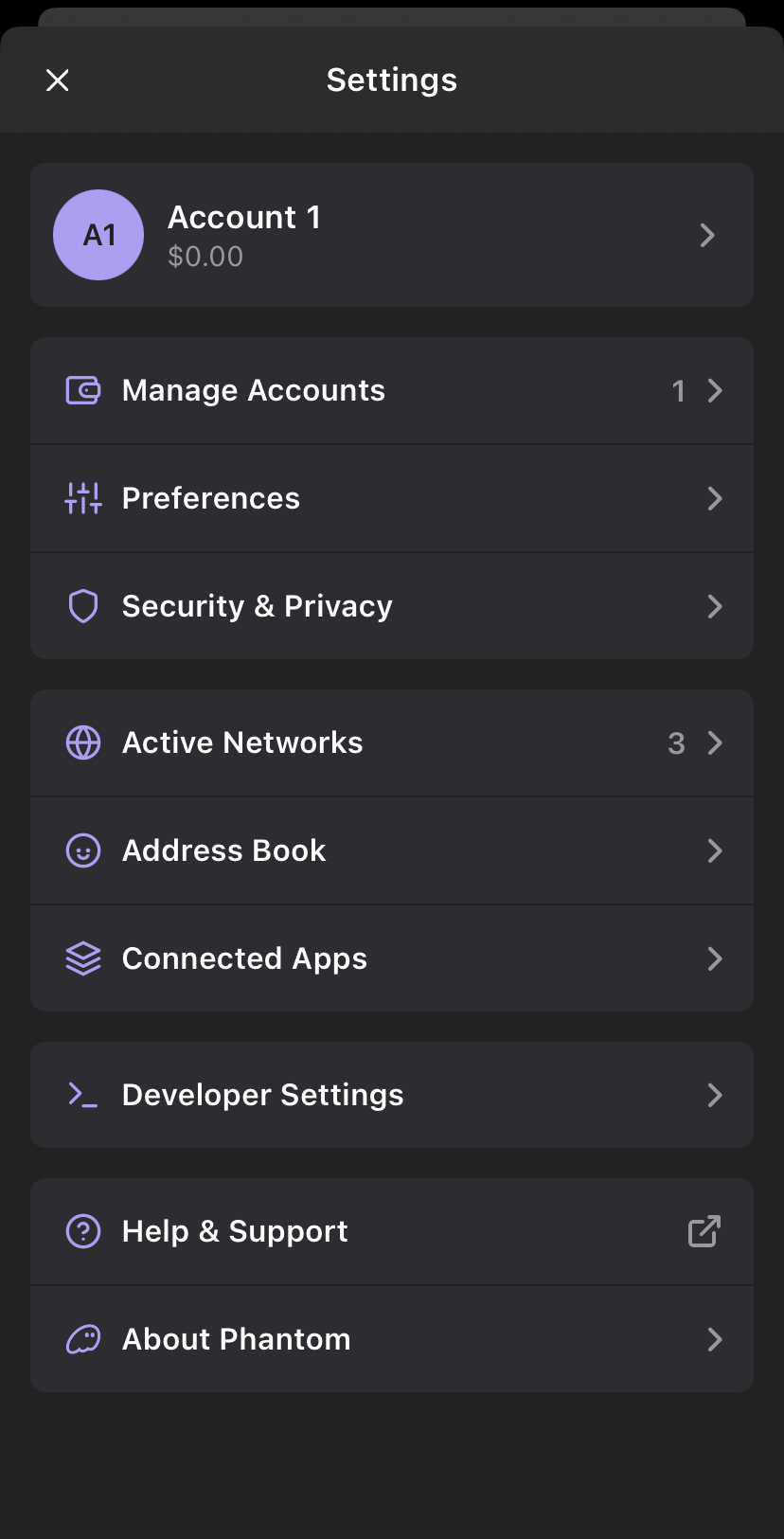
Okay, so you have downloaded or installed the Phantom Wallet on your desktop or mobile. Now, it’s time to adjust the different settings on the wallet. To begin, click the settings icon, which will give you a full list of options.
Selecting the Right Network (Solana)
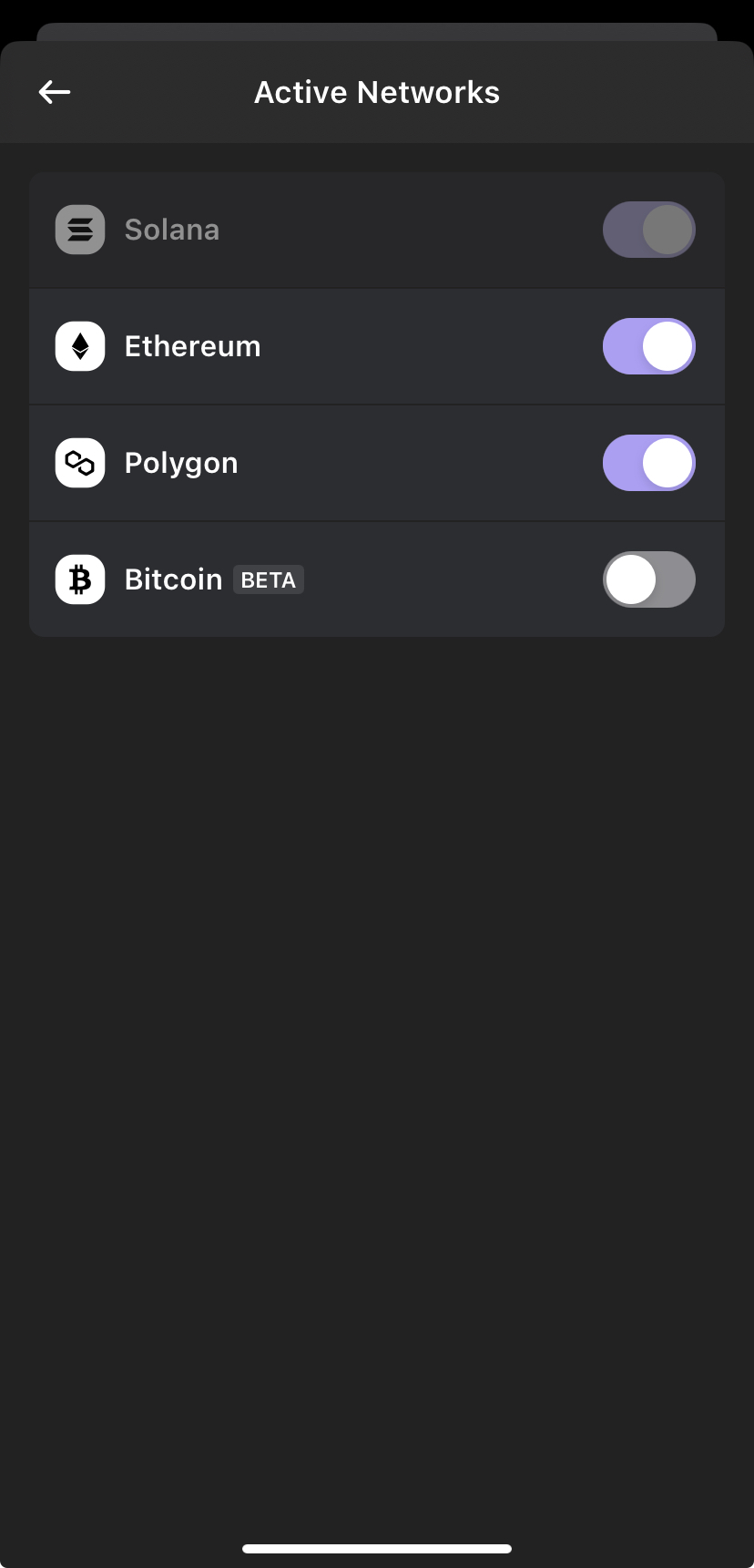
One of the first settings to check is the active networks that are enabled for your use. Three main networks power the Phantom Wallet. The first, by default, is Solana, as this is a Solana blockchain wallet, followed by Ethereum and Polygon. You can enable and disable the latter two. However, the Solana network is a permanent fixture.
The Bitcoin network can now also be added. However, this option is currently in Beta mode, so it may be wise to wait until it is fully active before using it.
Finding Your Public Address
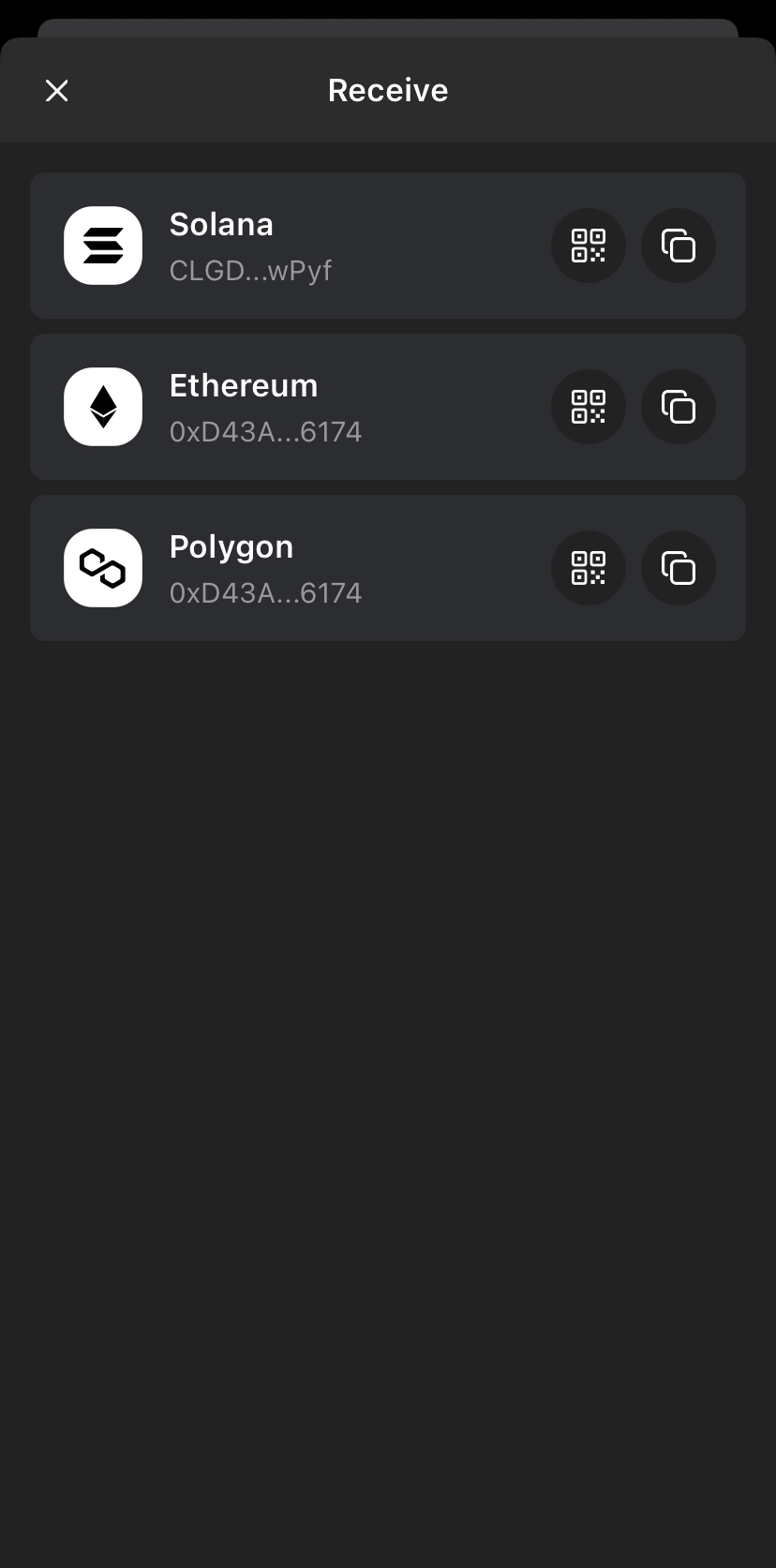
Next in the Phantom Wallet guide, you need to be able to find your public wallet address, which you typically need to receive payments from other wallets. Unlike your private key, this can be shared with others. You will need to ensure you choose the right address, depending on the network you are receiving the payment from.
To find this, click “Manage Accounts” in settings, which will then take you to the page below.
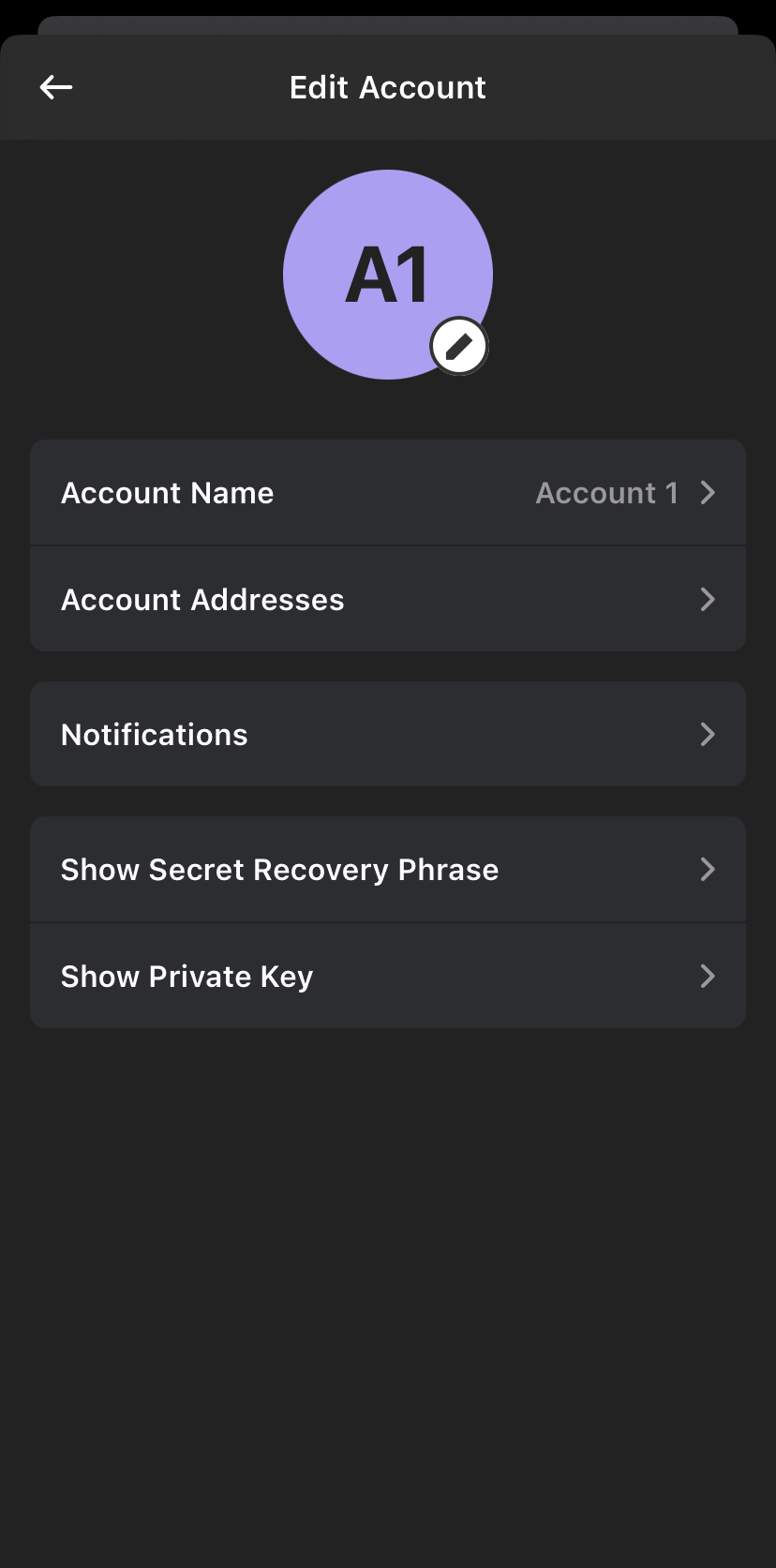
Tap “Account addresses” to see your public addresses for Solana, Ethereum, and Polygon. All that is required is to select the correct address and provide it to the party you are hoping to receive payment from.
Configuring Preferences
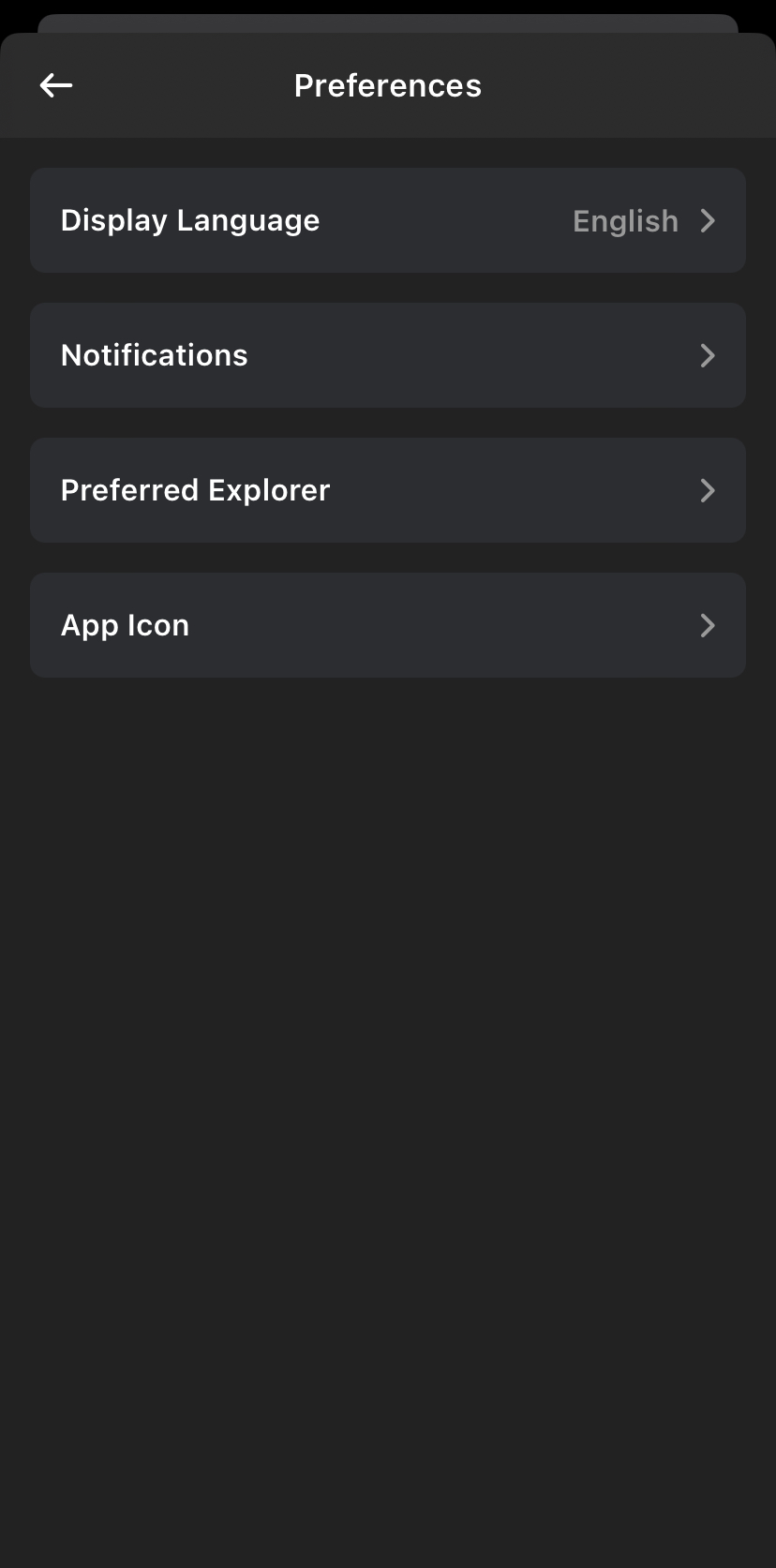
To further personalize the Phantom Wallet, you can access the preferences section on the settings page. Here you will be able to adjust the language and choose a default app wallet. There is also a more advanced option, “Preferred Explorer,” where you can change the default block explorer. However, this can be left alone.
Funding Your Phantom Wallet
Okay, now that you have configured your account and found your wallet address, you might be asking how to put money in your Phantom Wallet. You will need to have Solana tokens to use the different features of the Phantom Wallet. Let’s find out how you can buy Solana and add tokens to Phantom Wallet.
Buy Solana on a Centralized Exchange
If you don’t already hold Solana, the first option is to buy SOL from a centralized exchange (CEX). Buying it is simple; exchanges like Binance give you the option to buy the token, and all you need to do is register and verify your account.
After your account is verified, you can buy the amount of SOL you want with a debit or credit card. You will be able to do this directly on the Binance app. It is important to buy SOL first; otherwise, you will not be able to fund your Phantom Wallet.
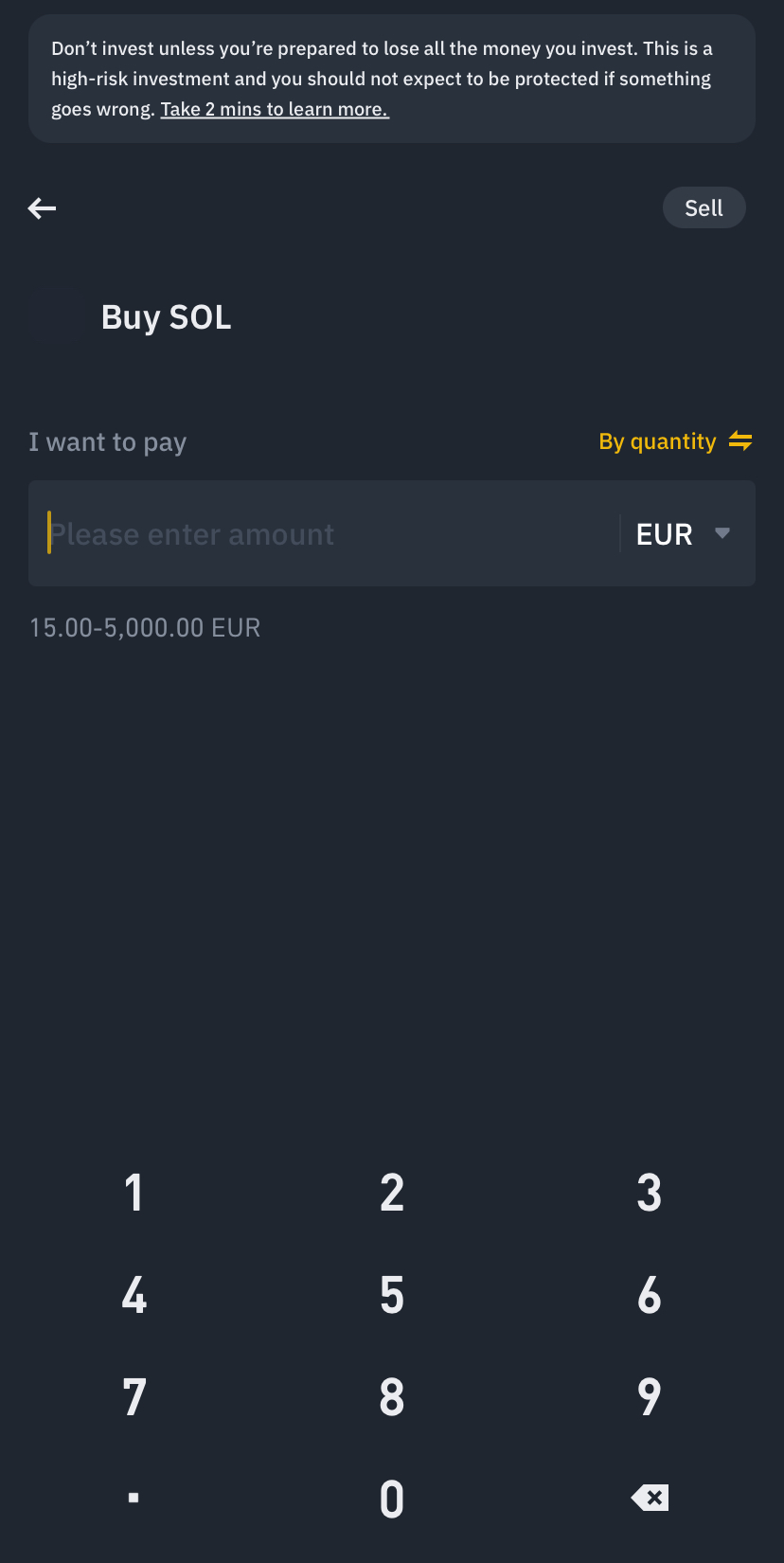
Once you have bought Solana tokens and are ready to send them to your Phantom Wallet, all you need to do is make a withdrawal request. Select the token (Solana), copy the wallet address from your Phantom Wallet, as we did above, and ensure you chose the right network. Click confirm, and the crypto will be sent to you.
Buy Solana Directly in the Phantom Wallet
Alternatively, you can buy Solana directly from your Phantom Wallet. All you have to do is click “Buy,” as seen below. Once done, you will be able to get the list of payment providers — currently, only Coinbase and MoonPay can be used. The fees on this can be quite high compared to an exchange.
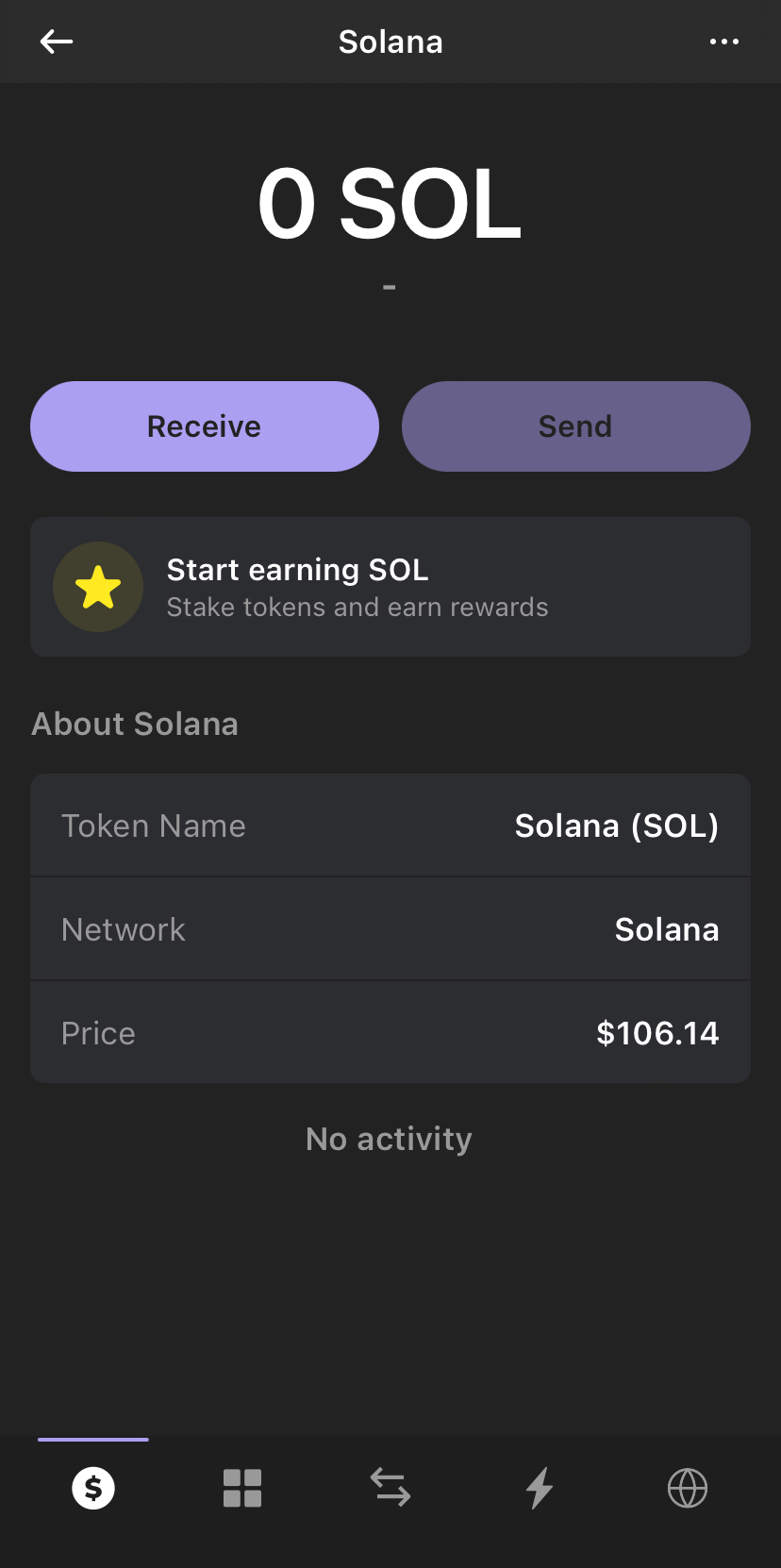
There is the benefit of doing this directly in-app; however, you will first need to create an account with the two payment providers, and then you can make future payments easier.
What Can You Use Phantom Wallet For on Solana?
Phantom Wallet is your gateway to accessing the decentralized applications (dApps) built on the Solana blockchain. The non-custodial wallet allows you to stake SOL, buy NFTs, and even trade tokens that are also on the network. Let’s go through these individually.
Staking Solana in Phantom Wallet
One of the main use cases on the platform is staking. It is easy to stake Solana while using the Phantom Wallet and earn extra SOL by doing so. All you need to do is click on the “start earning SOL” after you are on the token page to begin.
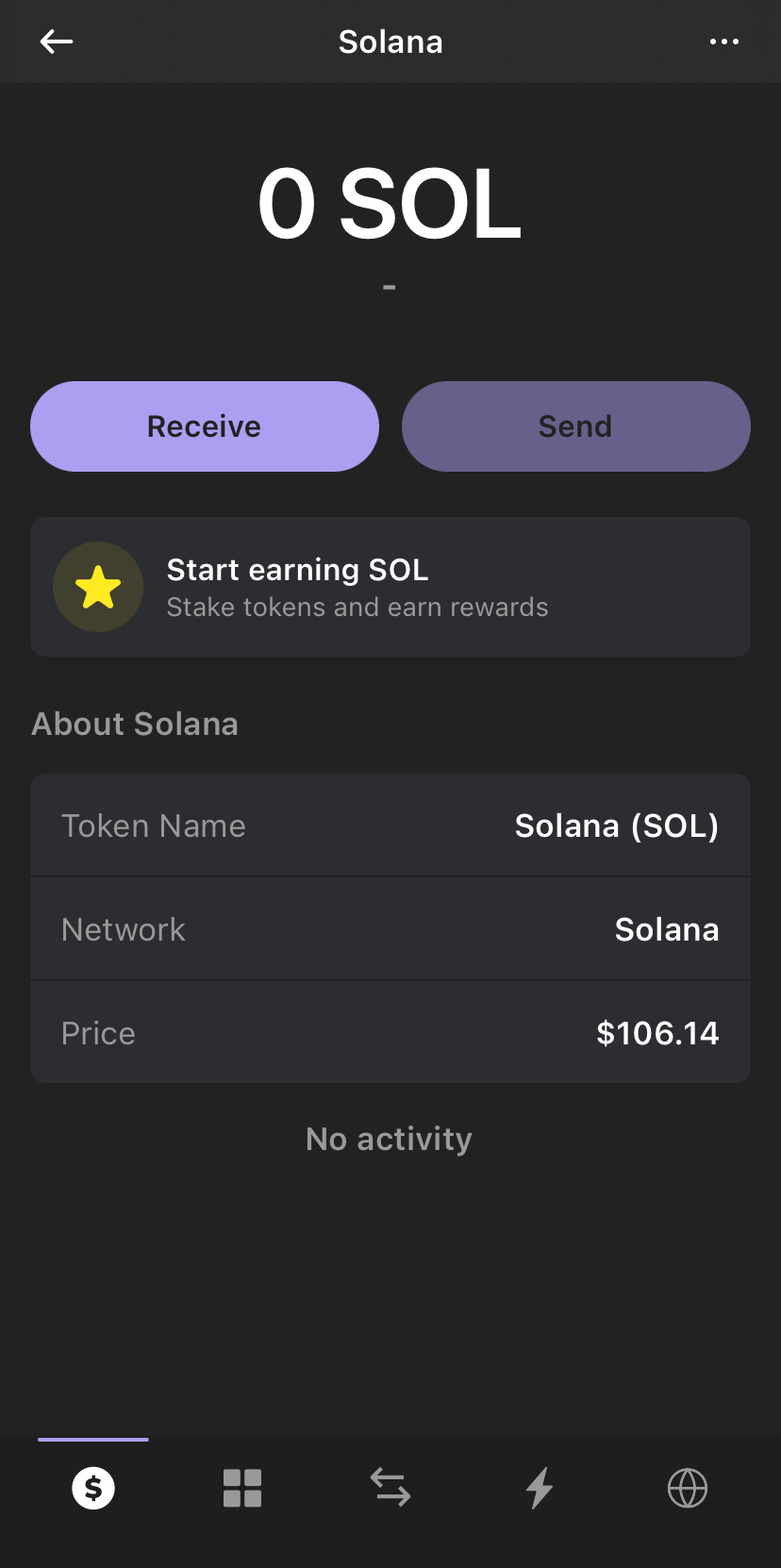
After clicking this, you will be presented with a list of validators. Once you have chosen a validator, all you need to do is enter the amount you want to start with and hit “Stake.”
Trade Crypto on Decentralized Exchanges (DEXs)
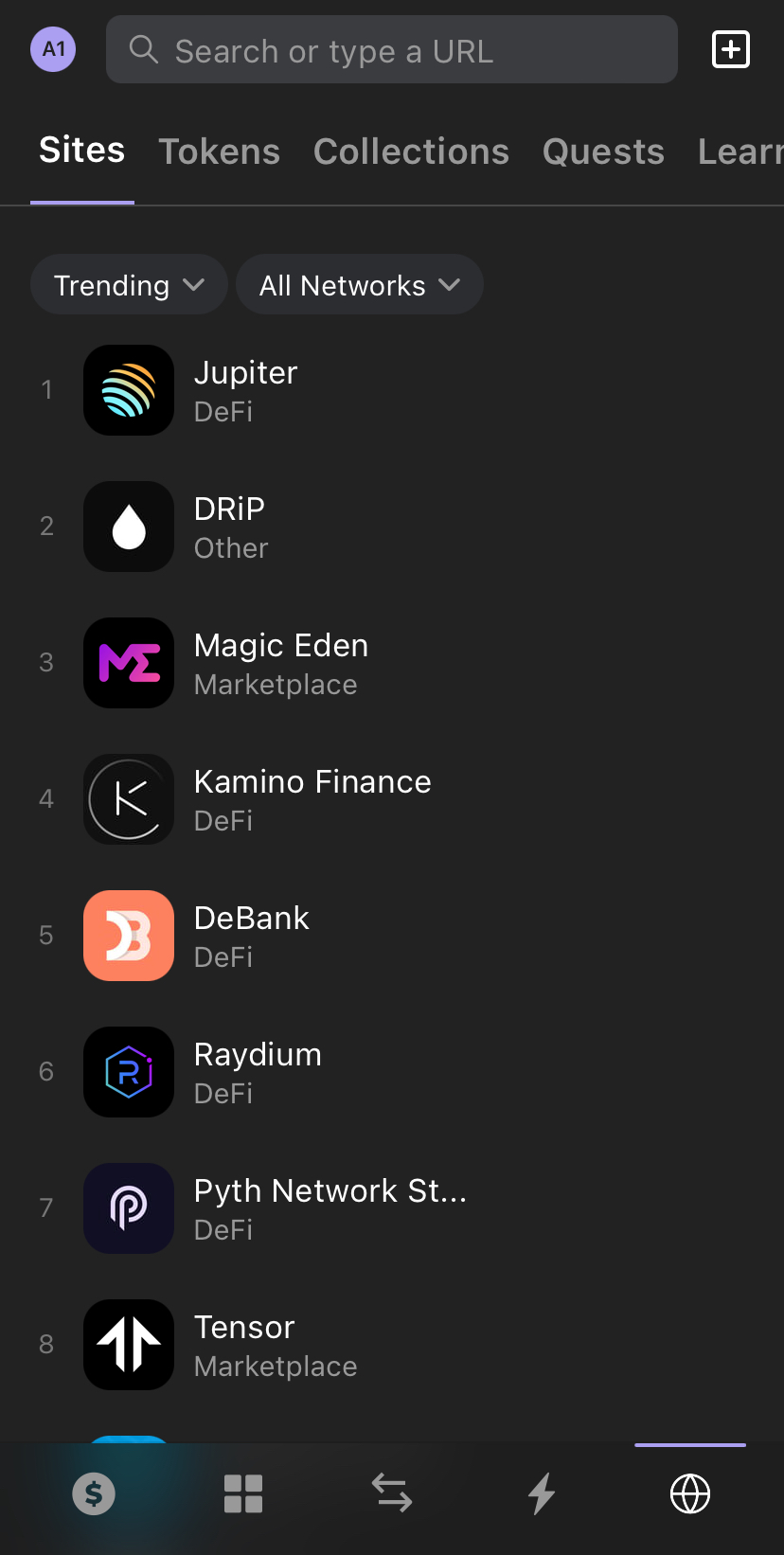
Trading on DEXs is another major use case on the Phantom Wallet, as you can directly trade and purchase tokens listed on exchanges like Jupiter and Raydium. By connecting to these marketplaces, you will be able to access some additional cryptos that are not listed on the Phantom Wallet, including Solana meme coins.
Buy NFTs
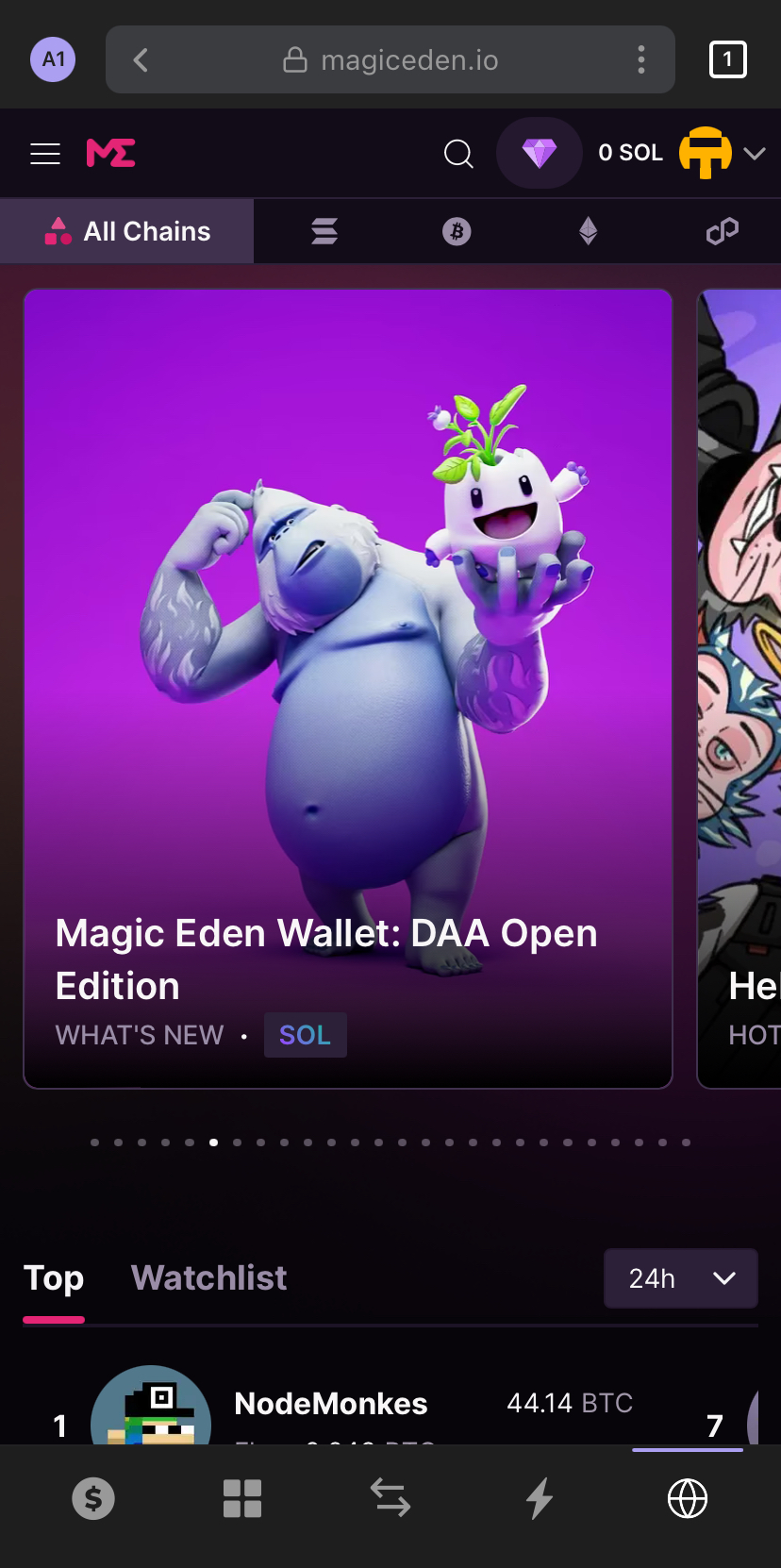
Finally, unlike other non-custodial wallets like MetaMask, you can buy and store NFTs in your Phantom Wallet. To do so, you will need to use platforms like Magic Eden, listed above. Once you click on this, you will see a list of NFTs available to buy using SOL. After choosing and buying one, these will be transferred to the Phantom Wallet, where you can view them.
How to Withdraw From Phantom Wallet to Your Bank Account
So, you’ve installed your wallet, traded, staked, and made a profit. You might be wondering how to withdraw from Phantom Wallet to bank account.
Firstly, you will need to send this back to the exchange from which you purchased it. Above, we walked you through how to buy SOL on an exchange like Binance using fiat. To withdraw funds from a bank account, you will need to send them back.
Step 1: Copy the Solana Deposit Address on Binance
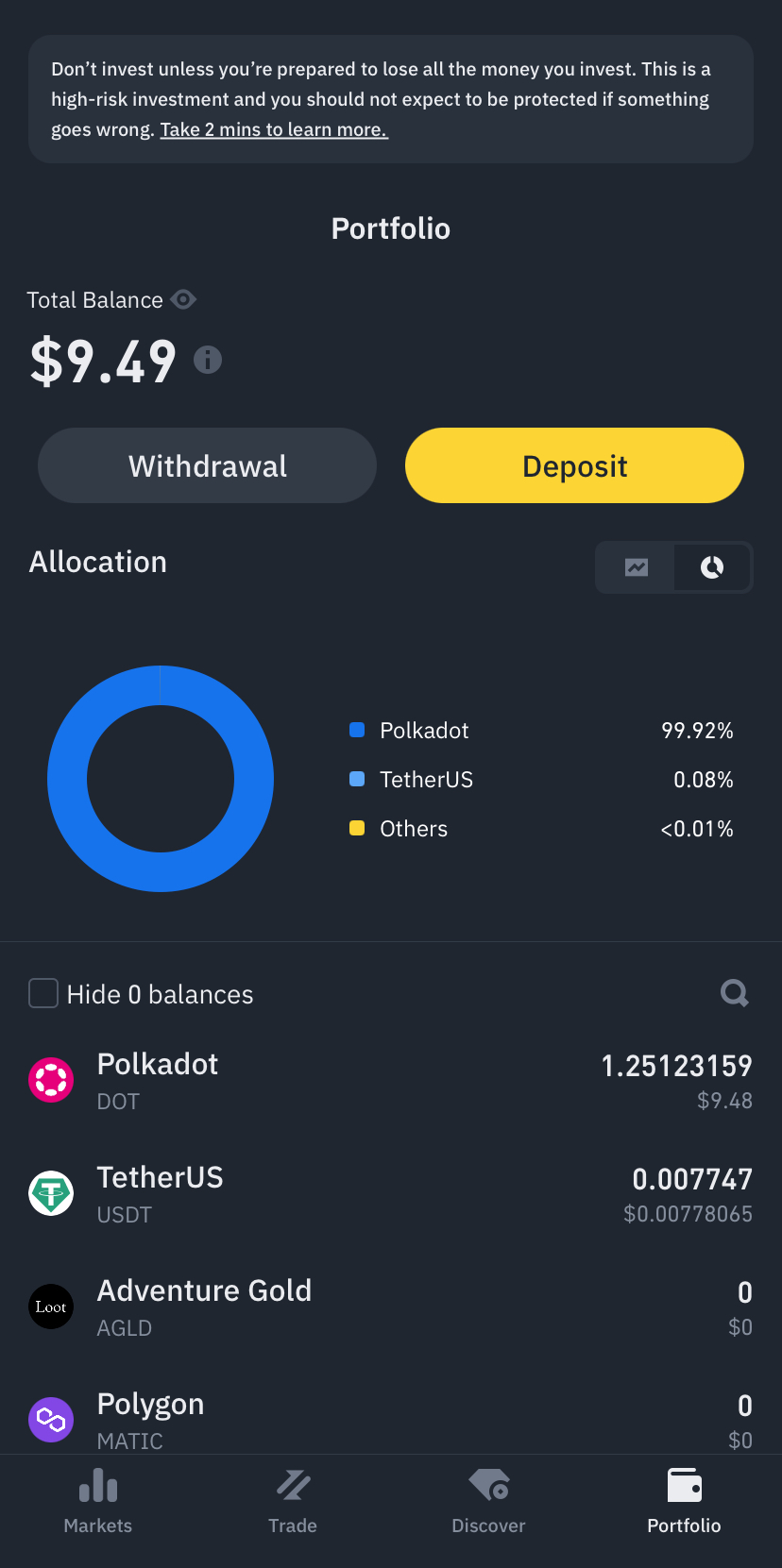
You will need to start by going back to your Binance account page, where you will see the option to “Deposit.” Click on this, and you will be given several options. Once you have chosen SOL and the correct network, you will be given the deposit address. Copy this.
Step 2: Send Solana from Phantom Wallet to Binance
After copying this, it is time to send your Solana from the Phantom Wallet to Binance using this address. In the wallet, you will see the option to “Send.” Click this, and it will take you to the page below. This is where you can paste the address you copied and enter the amount you want to send.
Step 3: Trade Solana for Fiat
Now that your Solana has been sent back to Binance, all that is needed is for you to trade it for a fiat currency like EUR or USD. You can do this on Binance Convert. Start by selecting SOL and the fiat currency you want to trade it for, then choose the amount.
Step 4: Withdraw to Bank Account
Finally, you have exchanged SOL for EUR. All that’s left is to send this to your bank account. Under the “Withdraw Fiat” section on Binance, you will be given several options to use. Choose whichever suits you and process your FIAT withdrawal.
Is Phantom Wallet Safe to Use?
Phantom Wallet has a wide range of security features designed to make the trading experience as safe as possible. Nevertheless, the wallet has shown its vulnerability in the past after being hacked, but the team has beefed up the security features in response. Phantom Wallet is generally a safe wallet to use, but it has clear limitations due to it being a hot wallet.
Before even accessing the wallet, you will first need to generate a secure password, which you should never lose or share. Use a password manager if necessary.
You’ll also be given a unique secret recovery phrase. To ensure the safety of your account, please write this down and keep it somewhere safe that cannot be accessed by third parties. If someone finds this, they can use it to log in to your wallet.
To prevent this, you can enable facial recognition on your mobile. The desktop extension also automatically times out after some time, prompting you to sign in again
Conclusion
Overall, Phantom Wallet is a safe, secure, and accessible platform for those looking to access decentralized applications and tokens on Solana. The platform is easy to use, both on mobile and desktop, and comes with several key features. You may enjoy reading our Solflare vs Phantom article to see how two of the leading SOL wallets stack up.
You can access DEXs to buy and trade cryptos on the Solana blockchain, whilst also accessing NFT marketplaces like Magic Eden. Comparing this to another non-custodial wallet, Phantom allows you to store and view your collectibles and cryptos together.
Staking can also be done on the platform, with access to a comprehensive list of validators to choose from. Once the Bitcoin Beta becomes fully available and other networks can be used on the wallet, you may see a mass migration from other wallets to Phantom Wallet.
FAQs
Is Phantom Wallet a good wallet?
Is Phantom Wallet only for Solana?
What is Phantom Wallet used for?
How can I create a Phantom Wallet?
Reference
- Phantom Wallet adds Bitcoin network (New.Bitcoin.com)
- Solana expands security following rug and pull hack (CoinDesk)
- Phantom prevents nearly 20,000 hacks (Yahoo News)
- Burn NFTs feature added to Phantom Wallet (Investing.com)
2M+
250+
8
70







 in numbers

About Cryptonews
Our goal is to offer a comprehensive and objective perspective on the cryptocurrency market, enabling our readers to make informed decisions in this ever-changing landscape.
Our editorial team of more than 70 crypto professionals works to maintain the highest standards of journalism and ethics. We follow strict editorial guidelines to ensure the integrity and credibility of our content.
Whether you’re looking for breaking news, expert opinions, or market insights, Cryptonews has been your go-to destination for everything cryptocurrency since 2017.
